Assemblies
Position your parts relative to each other and make them move with joints.
The Assembly workspace positions the project’s bodies relative to each other, without changing their shape. A part is a single body, or a group of bodies that moves as one.
To try it, open the Articulated mechanism example from Start from an example.
Edit a part
The Modeling / Assembly switch in the header chooses the tools. Select an assembly part and choose Edit part from the dock, context menu or properties. A linked part opens its source tab; a local part returns to its fabrication coordinates.
Return to assembly in the header restores calculated placements and rebuilds linked sources. Fixed parts, groups and joints stay saved while editing. 3D exports and drawings use the pose on screen.
Appearance adjusts materials, lighting and background while preserving that pose.
The tools
| Button | What it does | Key |
|---|---|---|
| From Atelier | Copy parts from another project | — |
| Import | Add the parts from a 3D file | — |
| Joint | Link two parts | J |
| Interference | Find parts that overlap | — |
| Section view | See inside the assembly | — |
| More → Group | Gather parts into one block | Ctrl/Cmd+G |
| More → Ungroup | Split a group | Shift+Ctrl/Cmd+G |
Select a part
Click a part, in the scene or in Objects. Shift, Ctrl, or Cmd+click adds or removes a part.
An action card opens: Link…, Fix part, Group or Ungroup, Transparency…, and Hide part.
The Objects panel lists Parts and Joints. An anchor marks a fixed part. Double-click a part to rename it.
Add parts
From another project:
Click From Atelier, then choose a project (On this device or Online).
Uncheck the parts you don’t need, then click Add N parts.
These are copies: editing the source project doesn’t change them.
From a file: click Import, choose a file, then Add to assembly. Formats: Import and export.
Each part arrives free, at its original position. In an empty project, the first part is fixed.
Place, fix, group
- Move or rotate: in Position and rotation, enter the Position (mm) and the Rotation (°).
- Fix part anchors it as the reference. Unfix part makes it free again.
- Group: select several parts, then Group. Group before you link.
- Ungroup: each body becomes a part again, without moving.
A driven part is adjusted in Joint settings.
Create a joint
A joint attaches a part that moves to a part that stays.
Press J, or click Joint.
Part that moves: click a flat face, a cylinder or a hole.
Part that stays: click the spot you want on another part.
Adjust, then click Done.
Two flat faces sit face to face. A cylinder goes into a hole. Face hidden? Open Choose from a list.
Joint types
| Type | Motion | Setting |
|---|---|---|
| Rigid | None: the part stays attached | None |
| Revolute | Rotates around an axis | Angle, in degrees |
| Slider | Slides along an axis | Travel, in millimeters |
Edit a joint
Click its row in Objects, or Edit joint in Movable joints.
- Joint type: changes the motion, without moving the part.
- Limit the angle or Limit the travel: Minimum and Maximum bounds.
- Position and orientation: axis, Flip, and Offset.
- Joint options: Name and Joint enabled.
Delete joint removes it. The part stays in place, free.
Move the mechanism
The Assembly panel shows Movable joints: one value slider per revolute or slider joint. Click a joint or its part to show its handle in the scene.
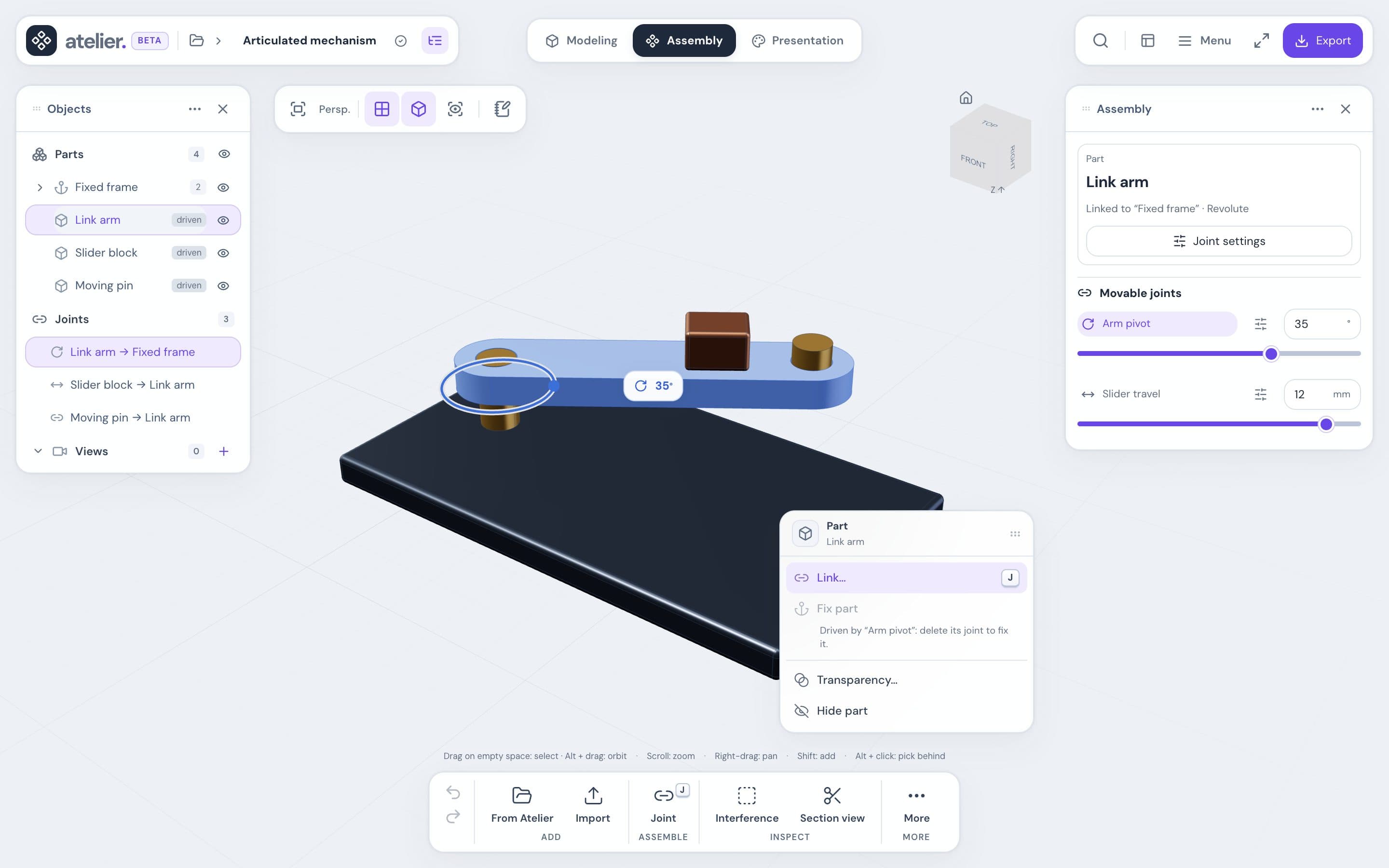
- Drag a revolute joint’s ring or a slider joint’s arrow.
- Shift moves in large steps. Esc cancels the drag.
Check for collisions
Atelier doesn’t simulate contact: two parts can pass through each other.
- Section view: cuts the assembly with a plane.
- Interference: finds solids that overlap, in Current position or In motion.
Details in Selection and measurements.
Repair an assembly
If a body was suppressed or deleted in the history, the panel shows Assembly needs repair. Restore the body in Modeling, or click Remove missing bodies.
Good to know
Joints don’t follow the geometry
A joint keeps the position of the face you clicked. After changing the geometry, check your joints.
- A part is driven by only one joint, with no loops.
- Numeric caps: Limits.