Drawings
Turn your part into a dimensioned 2D sheet, then export it as SVG or print it.
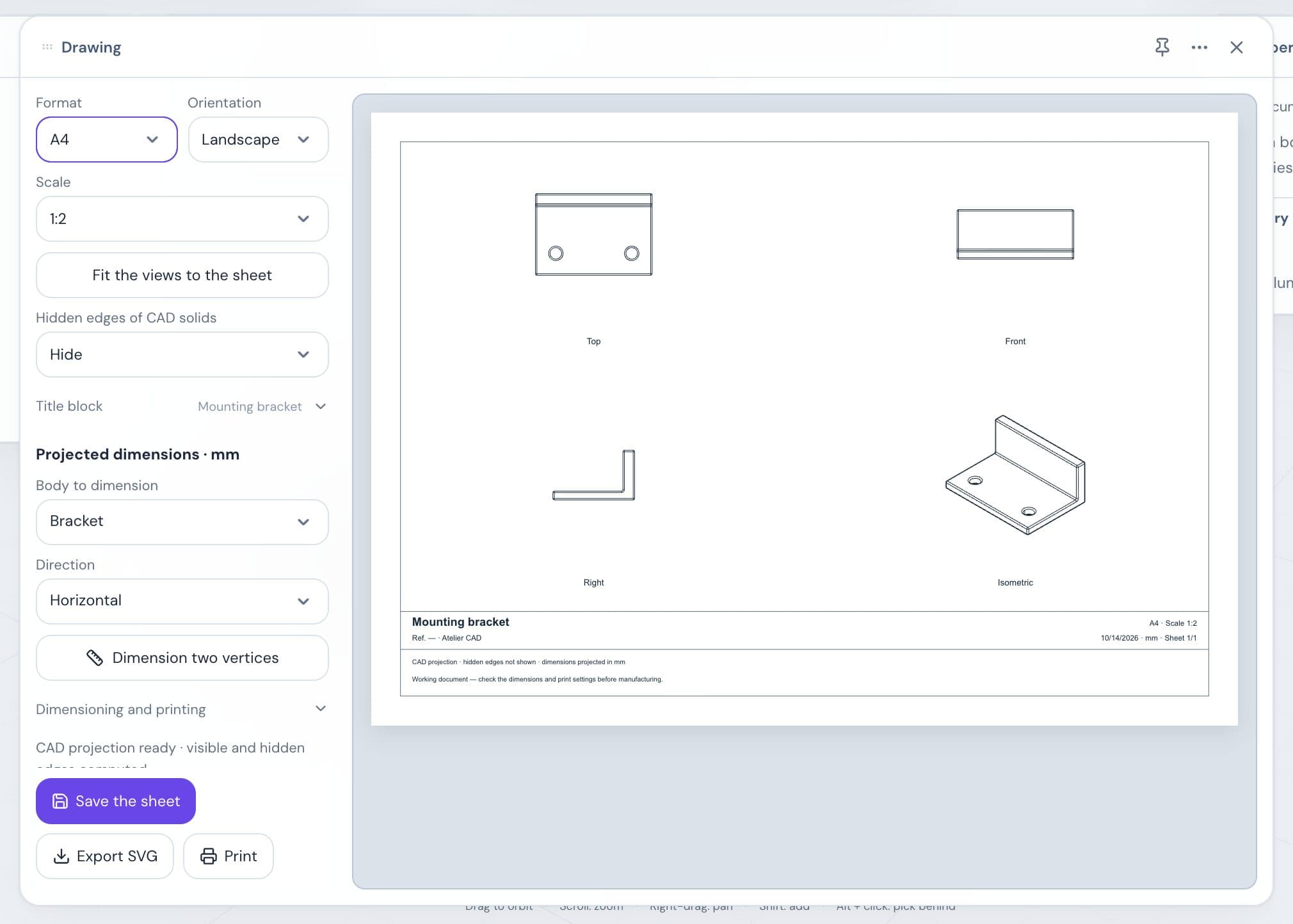
A drawing shows your part on an A4 or A3 sheet, with four views, a title block, and dimensions. When the part changes, the drawing updates.
Open the drawing
Go to the Modeling or Assembly workspace.
In the dock, click More, then Drawing.
The window opens: settings on the left, sheet preview on the right. Another way: press S and search for Create a drawing.
Good to know:
- The project must contain at least one body.
- Only visible bodies are drawn. To leave a body out, hide it in Objects before opening the window.
- The parts of an assembly appear in their assembled position.
Set up the sheet
| Setting | What it does |
|---|---|
| Format and Orientation | A4 or A3, Landscape or Portrait. |
| Scale | From 1:50 to 10:1, the same for all views. |
| Fit the views to the sheet | Picks the largest scale where everything fits. |
| Hidden edges of CAD solids | Hide or Show dashed. |
| Title block | Title, Reference, Author, and Date. |
The four views have fixed places: Top, Front, Right, and Isometric. If a view overflows its frame, or after changing the format, click Fit the views to the sheet.
The scale changes the size of the drawing, never the dimension values.
Add dimensions
In Projected dimensions · mm, choose the Body to dimension.
Choose the Direction: Horizontal, Vertical, or Aligned.
Click Dimension two vertices. Blue points appear on the body.
Click two blue points in the same view, except Isometric. The dimension is placed automatically.
Add more dimensions, then click Finish dimensioning.
Each dimension is added to a list. Its number field moves it away from the drawing; a negative value moves it to the other side. The trash can deletes it.
When the part changes
The views are redrawn each time the window opens. Each dimension stays attached to its two vertices and shows the new measurement.
| Label | What it means |
|---|---|
| Linked to the extrusion | The dimension follows the sketch, the parameters, the depth, and most moves. |
| Geometric reference verified | The dimension needs reattaching as soon as its body changes. |
| To reattach | A vertex is gone or the body is hidden. The dimension is no longer drawn. |
To fix a dimension marked To reattach, click its link icon, then two vertices in its original view. You can also delete it.
Save the sheet
Your changes are kept only when you click Save the sheet. Each project has a single sheet.
If you close without saving, Atelier offers to save or discard. Once the window is closed, Ctrl/Cmd+Z undoes the save.
Export and print
| Button | Result |
|---|---|
| Export SVG | Downloads the sheet as SVG, at actual size. |
| Opens the browser’s print dialog. Choose actual size (100%), with no headers or footers. |
These buttons stay grayed out while a view overflows or a dimension needs reattaching.
The drawing can only be exported from this window. For other formats, see Import and export.
What drawings don’t do
- No extra views, sections, or free text. Annotations stay in the 3D view.
- No angle, radius, or diameter dimensions, and no tolerances.
- Dimensions describe the part without driving it. To change a size, edit the sketch or the parameters.
- Imported meshes are drawn with all their edges and can’t be dimensioned.
- It’s a working sheet, not a standards-compliant drawing.
See also Limits.