History
Review, edit, reorder, or delete the operations that build your part.
Your part is the result of a list of operations. The Operations panel shows them in order, from top to bottom.
Open the panel
Click Operations at the right edge of the canvas. You can also show or hide it under Settings → Panel layout.
The panel is only available in Modeling. It hides while you sketch, then comes back.
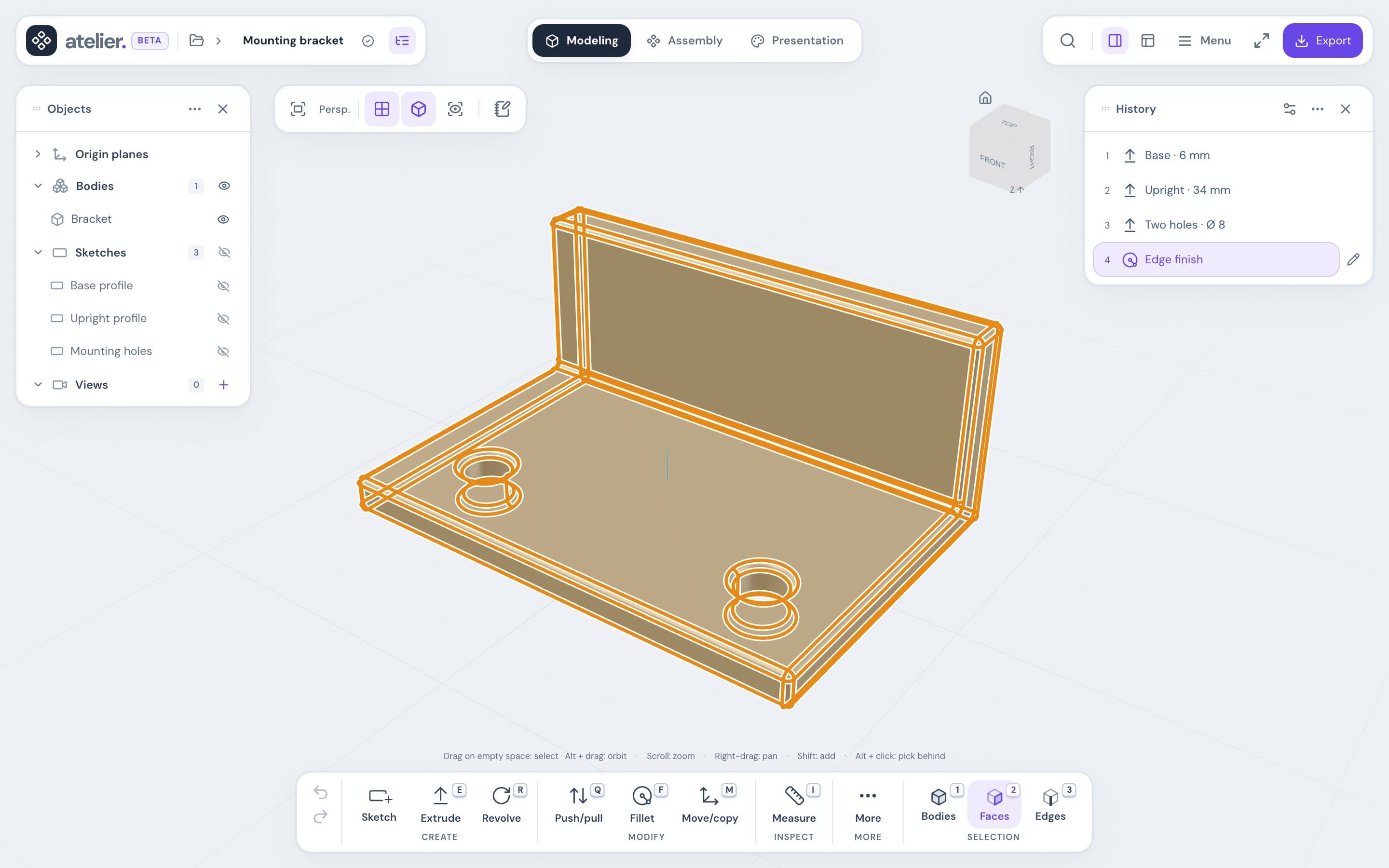
Read the list
Each row shows the operation’s number, icon, and name. A new operation is always added at the bottom.
- Suppressed: name struck through, the operation is ignored.
- Needs repair: orange row, its edges must be picked again.
Work with a step
| Gesture | Effect |
|---|---|
| Hover | Highlights its faces and edges in the scene |
| Click | Selects the step and keeps the highlight |
| Double-click or pencil | Opens the operation to edit it |
| Right-click or Shift + F10 | Opens the options: Edit first, Delete separated at the bottom |
| Esc | Closes the options if open; otherwise, clears the highlight |
Filter by selection
Select a body, face, or edge in the scene or in Objects. The list keeps only the operations that created or changed it. A banner shows the filter, with the count “n / total”. If nothing matches, the list shows “No linked operations”.
Click an empty area to show everything again.
Edit an operation
Double-click the step, click its pencil, or choose Edit from its right-click menu.
Set the values in the card that opens. The preview updates live.
Click Apply or press Enter. The operations that follow are rebuilt.
To discard your changes, press Esc or click the × button (Cancel the operation).
All settings shows every setting, plus:
- Edit references: choose other faces or edges;
- Name in history: change the step’s Name.
Each operation is detailed in Operations.
Organize the history
Click Organize operations in the panel header. It’s also in Search commands (S).
| Action | How |
|---|---|
| Reorder | Drag the handle, or use the up and down arrows |
| Suppress | Uncheck its box. Its settings are kept. |
| Delete | Click the trash can, then confirm |
Each change applies right away. If the new order doesn’t work, nothing changes. Click Done to close.
To see the part at a given step, suppress the operations after it, starting from the end.
Delete an operation
Right-click the step, then choose Delete, separated at the bottom of the menu. You can also select the step and press Delete. A confirmation dialog then opens: click Delete to remove that operation.
Only this operation is removed; its sketch stays. If a later operation uses its body, the deletion is refused. In that case, delete starting from the end.
Fix an error
If the rebuild fails, nothing is saved. The part keeps its last valid state and a message appears at the top. Fix the settings, then apply again.
When a fillet or chamfer loses its edges, the step is marked Needs repair:
Click Repair edges in the message, or double-click the step.
In All settings, click Clear selection.
Click the new edges, then Apply.
If a face changed, reopen the operation and pick the face again.
Undo and redo
The buttons are to the left of the tool dock, at the bottom of the screen.
| Action | Shortcut |
|---|---|
| Undo | Ctrl/Cmd+Z |
| Redo | Shift+Ctrl/Cmd+Z |
Each confirmed change counts as one step. Undo is unavailable while an operation is open.
In a sketch, undo only affects the sketch (see Sketches).
Undo doesn’t survive a reload
Reloading the page or opening another project clears the undo list. To go back further, use versions (see Projects and saving).