Projects and saving
Create and find your projects, and understand how Atelier saves them.
Your projects live in My projects. Atelier saves them on its own: there is no Save button.
Open My projects
- On the home page: click Open Atelier.
- In the editor: click the project name at the top left, then My projects.
Then click a card to open the project. The editor’s URL points to that project: reloading the page reopens it.
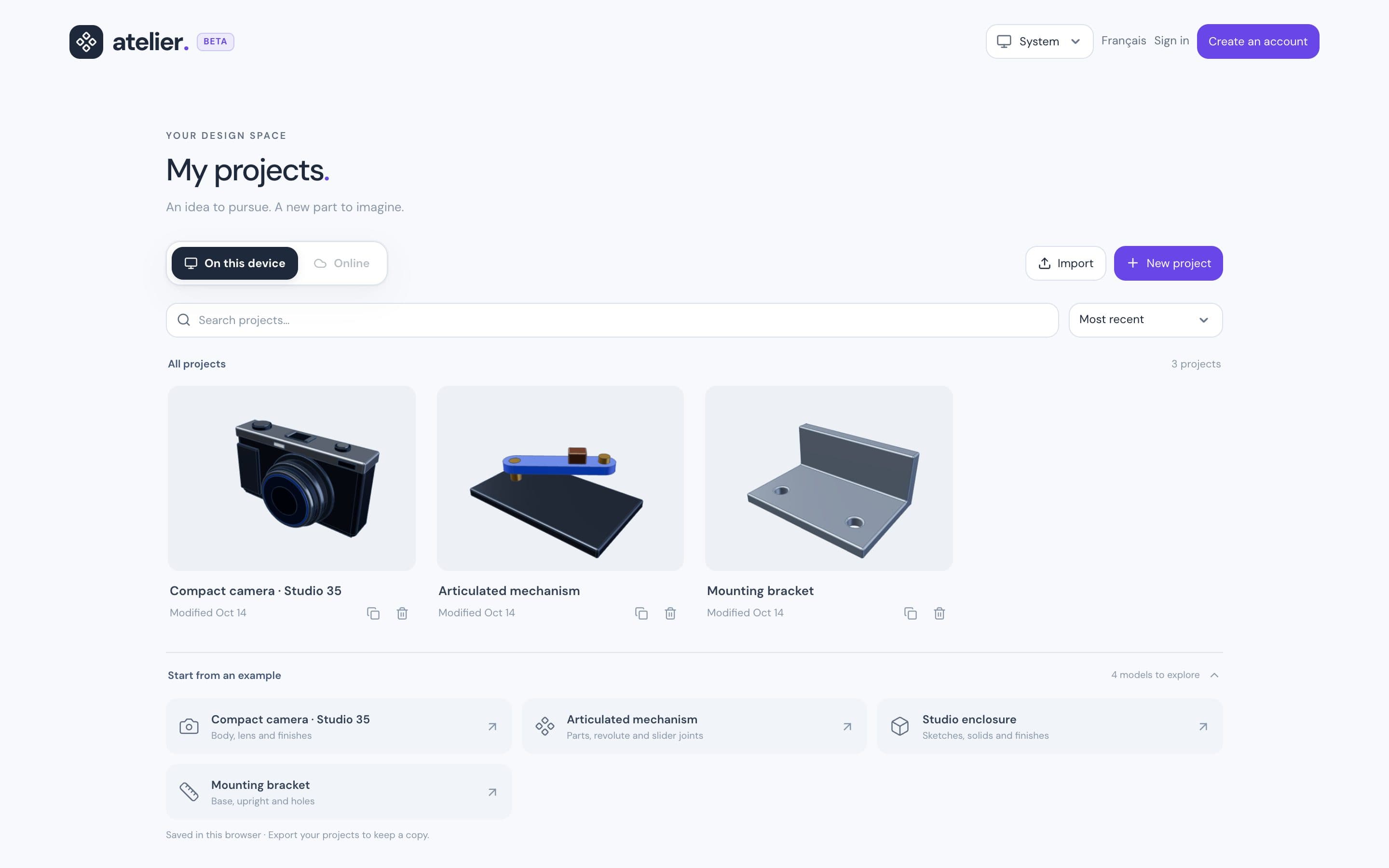
Two tabs: On this device or Online
| Tab | Contents | Account required |
|---|---|---|
| On this device | The projects in this browser. Each browser has its own list. | No |
| Online | Your online projects and those shared with you. | Yes |
A new project goes into the open tab.
Projects on this device
Clearing the site’s data in your browser deletes them. Keep a backup copy (see below) or sync them to your account.
Create a project
Choose the On this device or Online tab.
Click New project.
Enter the Project name.
Click Create project. The empty project opens.
From the editor, the project menu → New project also opens the creation dialog. The new project starts on this device.
Start from an example
Under Start from an example, click a model:
- Instrument enclosure · Atelier 01
- Compact camera · Studio 35
- Articulated mechanism
- Studio enclosure
- Mounting bracket
Each click creates your own copy, saved on this device.
The instrument enclosure is the homepage model with editable parts, sketches and operations. In Parameters and expressions, width sets its width in millimeters (try 102 or 144), and lid_lift raises the lid together with its screws and dial (try 12.8).
Import a file
Click Import, then choose or drop a file.
- From My projects: the editor opens and imports the file as a new project, saved on this device. From the Online tab, it is then sent to your account. A refused file leaves the editor on your last project, with the import window giving the reason.
- From the editor: Import here adds it to the open project.
Supported formats: Import and export.
Manage your projects
| Action | How |
|---|---|
| Search | Type a name in Search projects…. |
| Sort | Choose Most recent or Name · A to Z. |
| Rename | In the editor, click the project name, choose Rename project, enter the name, then click Save. |
| Duplicate | Click the card’s Duplicate icon. |
| Delete | Click the card’s Delete icon, then confirm. |
Duplicate and Delete are only available under On this device. Deleting is permanent: there is no trash. It only removes the copy on this device. An online project stays in your account.
Automatic saving
- Every change is saved in this browser.
- If you’re signed in, it’s also sent to your account, even for a project created without one.
- If you’re offline, keep working. Uploads resume when you’re back online.
To force a save: Ctrl/Cmd+S.
The status indicator
The indicator below the project name shows the status. Hover over it for details.
| Icon | Label | Meaning |
|---|---|---|
| Check mark | Saved on this device | Saved in this browser. |
| Spinning circle | Saving… | In progress. |
| Cloud with check mark | Saved to your account · version N | Sent online. |
| Red alert | Sync pending | Upload failed, work kept on this device. |
| Red alert | Conflict to resolve | See below. |
Work without a network
After a first visit to My projects or the editor, Atelier opens without a network. Your browser keeps the editor, its 3D engines and My projects: about 60 MB, downloaded in the background during that visit.
Offline, you can:
- open My projects and the projects On this device;
- open an online project already opened on this device, from its card under On this device or from its address: its copy on this device opens;
- create and edit projects, saved on this device;
- import and export files, STEP included.
Changes to an online project are uploaded to your account once you’re back online, if you’re still signed in. What needs the server waits for the connection: signing in, the Online tab, uploads, sharing, version history and this documentation. Offline, the home page leads to My projects.
After an update of Atelier, you get the new version as soon as you’re online. The offline copy is updated in the background and used once every Atelier tab has been closed.
Keep your projects
Atelier asks the browser to keep its storage, so that it isn’t cleared when disk space runs low. Firefox asks for your permission: accept it to protect the projects on this device. Chrome and Edge decide on their own.
Create an account or sign in
An account is optional. It lets you find your projects on another device, and gives you version history and sharing.
- On the home page or in My projects: Create an account or Sign in.
- In the editor: Settings → My account.
To create an account, enter your name, your email address and a password, then click Create my account.
Once you’re signed in, this Settings entry shows your name. It offers Sync this project and Sign out.
Signing out removes the copies of your online projects from this device. Projects that were never uploaded stay.
Version history
Each online save creates a version. Open the project menu → Project versions, then choose a version (the most recent is at the top).
- Restore this version replaces the current model. Ctrl/Cmd+Z undoes it.
- Open a copy creates a separate project. The original project doesn’t change.
On a read-only project, only Open a copy is offered. If your online storage is full, the oldest versions may be deleted: see Limits.
If there’s a conflict
A conflict happens when the project is saved somewhere else while you work: another device, another person or another tab.
Atelier doesn’t overwrite anything. Your work is kept in a recovery copy, visible in My projects. The indicator shows Conflict to resolve and a banner offers two choices:
| Button | Effect |
|---|---|
| Continue in a copy | Your work continues in a new project. |
| Open the online version or Open the latest version | The version saved elsewhere opens. Your work stays in the recovery copy. |
Atelier doesn’t merge the two versions. Copy your changes over by hand, then delete the copies you no longer need in My projects.
Keep a backup copy
An .atelier archive contains the whole project, sketches and history included.
In the editor, click Export at the top right.
Choose ATELIER (“Editable project”).
Click Export. The file downloads.
To reopen it, click Import in My projects: it opens as a new project.
Organize parts and assemblies in tabs
The bar at the bottom of the editor contains Document tabs. Use + to create a New part studio or New assembly. Each tab owns its sketches, operations, bodies, materials, parameters and saved views.
Create assembly from this tab creates an assembly linked to the model’s parts. In an existing assembly, + → Insert linked parts from… adds references to another tab. Edit a source part, then return to the assembly: its geometry updates automatically while destination identifiers, placements and joints remain intact. References also update through several tabs and after reopening the project.
+ → Insert a copy of… remains available for independent copies. Duplicate tab copies the modeling history; existing associative references continue to follow their original sources. Destination names and materials remain independently editable. An insertion links the parts present at that moment; newly added source parts must be inserted separately.
Under Tab name, Open source takes you to the original model. Break associative links keeps the latest saved geometry as independent parts and can be undone. A removed, suppressed or invalid source produces a warning while keeping the last saved shape. Restore the source or break the link. A source tab cannot be deleted while other tabs reference it. Circular references are rejected.
Use Tab name to rename or delete the active tab. Creation, duplication, deletion and edits support Undo. Finish an open sketch or operation before changing tabs.
Local saves, cloud revisions and ATELIER archives preserve every tab. STEP/STL/3MF export uses the active tab's parts. Viewers can inspect tabs without editing the project.