Constraints and dimensions
Set the sizes and relationships of a sketch so it keeps the shape you want.
A dimension sets a size (length, radius, angle, position…); a constraint sets a relationship (horizontal, parallel, tangent…). Atelier adjusts the sketch to follow these rules.
Where to find the tools
- Selection card: it appears on the canvas when you select an item with the Select tool. It offers Dimension, the available constraints, X / Y position, Fix position, Construction and Delete.
- Sketch palette: hidden at first, it opens with More → Palette in the sketch toolbar. It shows the sketch status and the Dimensions and constraints list.
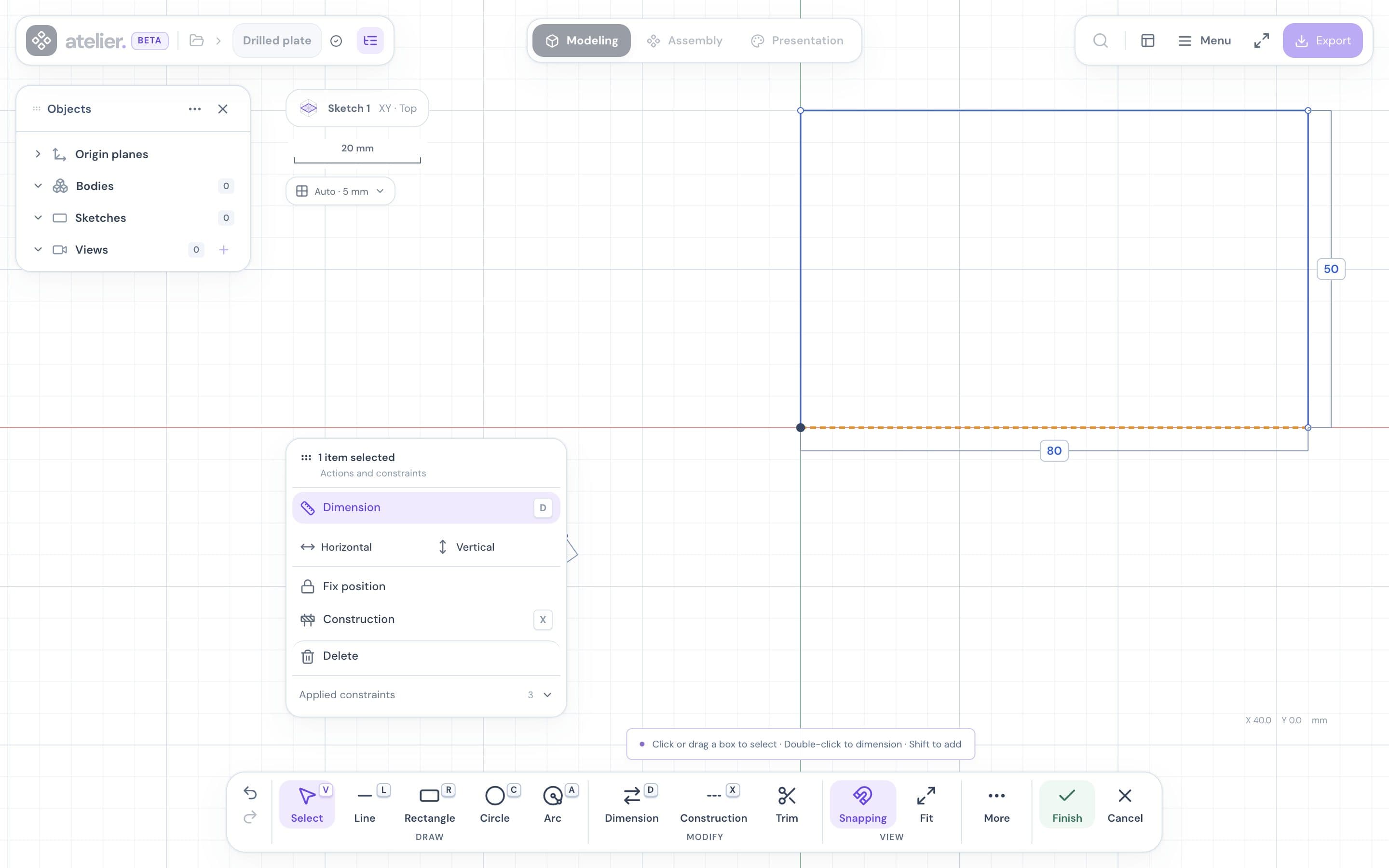
Add a dimension
Press D or click Dimension in the sketch toolbar.
Click a line, a circle, an arc, two points or two lines.
Move the mouse, then click to place the label.
Type the value, then press Enter.
Faster: with the Select tool, double-click a line, circle or arc. Or select the items, then click Dimension (or press D).
| Selection | Dimension created |
|---|---|
| A line | Length |
| Two points | Distance |
| Two circles or arcs | Center-to-center distance |
| A circle | Diameter (Ø) |
| An arc | Radius (R) |
| Two lines | Angle (°) |
- For an angle, click both lines before placing the label.
- The suggested value is the current measurement: confirm it to lock the size.
- Esc cancels without changing anything.
- A spline can’t be dimensioned: dimension its points.
Position a point
Select a single point, or a circle or arc to place its center.
Click X / Y position, or double-click the point.
Type X, move to Y with Tab, then press Enter.
Atelier creates two dimensions, X position and Y position, measured from the origin.
To lock a point without typing a value, click Fix position. Release position makes it movable again.
Edit a dimension
- Click its label on the canvas, or change its value in the palette’s Dimensions and constraints list.
- Drag a label to move it: its value doesn’t change.
- Undo with Ctrl/Cmd+Z.
A label marked ƒ is driven by a parameter: edit it in Parameters.
Add a constraint
Select the items (Shift + click to add more). The card only offers the constraints that apply.
| Constraint | What to select |
|---|---|
| Horizontal, Vertical | A line |
| Parallel, Perpendicular | Two lines |
| Equal | Two lines (same length) or two circles or arcs (same radius) |
| Coincident | Two points |
| On line, Midpoint | A point and a line |
| Tangent | A line and a circle or arc, or two circles or arcs |
| Concentric | Two circles or arcs |
| Symmetry | Two points and an axis line |
Some constraints are added automatically as you draw: a line drawn horizontally, the sides of a rectangle, a point snapped to another.
Read the sketch status
| What you see | Meaning |
|---|---|
| Blue curves, “N degrees of freedom” | The shape can still move. Each dimension or constraint lowers this number. |
| Green curves, “Fully constrained” | Everything is fixed. |
| Error message on the canvas | Conflict: the last rule is rejected and nothing moves. |
You can finish and extrude a sketch that can still move. It may, however, distort when you change a dimension.
If there is a conflict
Atelier doesn’t show which rule is blocking. Fix the value or remove a constraint, then try again.
Remove a dimension or constraint
- Selection card: expand Applied constraints, then click the chip to remove.
- Palette: expand Dimensions and constraints, then click the X on the row.
Removing a constraint keeps the geometry. Deleting an item also removes its dimensions and constraints.