Parameters
Name a dimension, reuse it everywhere and let the part adapt.
A parameter names a value, for example width = 80. Link it to your dimensions and operations: change it, and the whole part follows.
Open the panel
In the Modeling workspace, click More in the tool dock, then Parameters (in the Organize section). Or press S and search for Parameters and expressions.
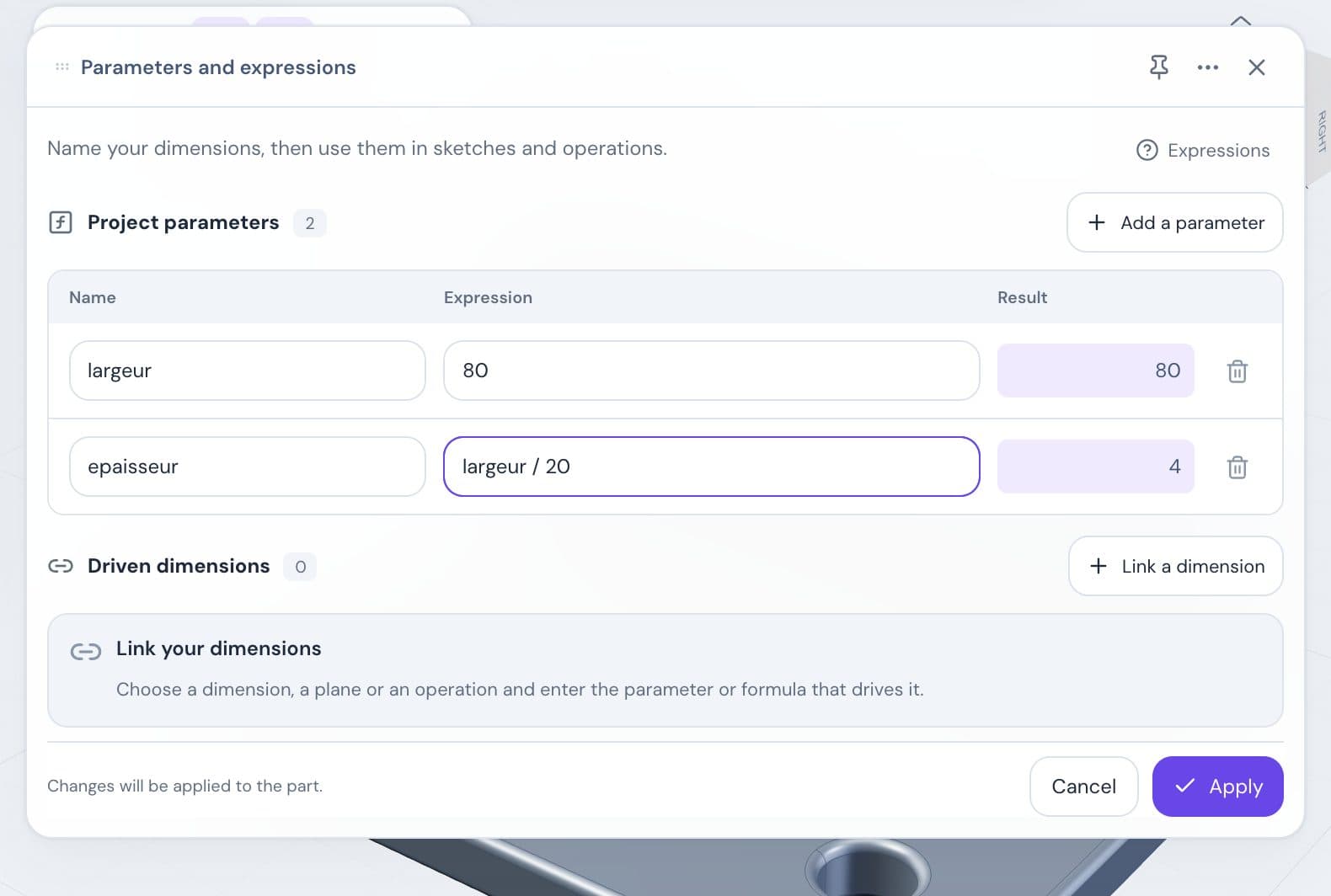
The panel has two sections: Project parameters and Driven dimensions. The Expressions button shows the syntax.
Create a parameter
Click Add a parameter.
Enter the Name, for example width.
Enter the Expression: a number or a formula. The Result appears right away.
Click Apply.
Nothing changes until you click Apply. Cancel closes without changing anything. Closing with pending changes asks “Close without applying?” If there is an error, a message appears and Apply stays grayed out.
The name:
- starts with a letter or an underscore (
_); - contains only unaccented letters, digits and underscores;
- is unique, and case matters:
Widthis notwidth.
Write an expression
| Element | Example |
|---|---|
| Number, with a decimal point | 2.5 |
| Another parameter | width / 2 |
+, -, *, /, ^ (power) and parentheses | (width - 2 * thickness) / 3 |
Functions min, max, abs, sqrt, round | max(gap; 0.5) |
Constant pi | 2 * pi * radius |
- Lengths accept mm, cm, m and in, converted to millimeters. Angles remain degrees and reject length units.
- Separate a function’s arguments with a semicolon.
sin,cosandtantake radians. For 30°, writesin(30 * pi / 180).
Link a dimension or an operation
In Driven dimensions, click Link a dimension.
Choose the target in the Dimension list, for example “Extrude · Distance” or “Sketch 1 · Distance 2 · 40 mm”.
In Expression, write a parameter or a formula, for example width / 2.
Click Apply.
Compatible numeric fields accept units and arithmetic. Parameter-aware operation fields also accept linked expressions saved in history.
A driven value is locked. A padlock appears under its field in the operation. In the sketch, its dimension starts with ƒ (see Constraints and dimensions).
By default, two extrusions have the same name in the list. To tell them apart, rename them in their panel, under Name in history.
Edit a parameter
Change its expression, then click Apply. Everything that depends on it is recomputed.
If the geometry becomes impossible, nothing changes and a message appears. A single Ctrl/Cmd+Z restores the previous values.
Renaming references
Renaming updates references in expressions, bindings and saved configurations.
Delete a parameter or a link
- A parameter: click the trash can on its row, then Apply. If it’s still in use, Apply stays grayed out: replace it in the expressions first.
- A link: click its trash can (Remove the link), then Apply. The dimension keeps its last value and becomes editable again.
Deleting a dimension, a sketch or an operation also removes its links.
Configurations
Save up to 50 named configurations in Parameters. Applying one restores its expressions and supports Undo; geometry shares the same history. Missing parameters must be corrected before applying. Linked insertion from another tab can choose a configuration without changing that source’s active values.